by SiteDesigner Technologies - 製品のタイプ: アプリケーション
この商品については、日本語の説明書きはございません。
Secure automatic file synchronization over FTP, FTP/SSL and SFTP. BatchSync Secure is a secure and high speed solution for automating file synchronization, backups, mirroring and replication over the FTP, FTP/SSL and SFTP over SSH2 connections. BatchSync Secure is designed to be run scheduled and unattended at the server, with extensive logging options and email notifications to help with remote monitoring. Features include: folder sync between local/network and FTP, FTPS and SFTP server folders. one-way file synchronization, one-way file replication, two-way file synchronization (bi-directional) and more.
一般向け価格については下記に表示されています。お客様用の割引価格をご覧になるには、ログインしてください。
| カートに追加 | ¥ 83,160 (税込) | 1 User License | ダウンロード (7.9 MB) | |
| カートに追加 | ¥ 66,570 (税込) | 2-4 User License, price per license | ダウンロード (7.9 MB) | |
| カートに追加 | ¥ 58,275 (税込) | 5-9 User License, price per license | ダウンロード (7.9 MB) | |
| カートに追加 | ¥ 54,075 (税込) | 10-14 User License, price per license | ダウンロード (7.9 MB) | |
| カートに追加 | ¥ 49,875 (税込) | 15-24 User License, price per license | ダウンロード (7.9 MB) | |
| カートに追加 | ¥ 41,580 (税込) | 25+ User License, price per license | ダウンロード (7.9 MB) |
すべてのご注文にて弊社標準の 契約条件および返品条件の内容が適用されます。
一般向け価格については上記に表示されています。お客様用の割引価格をご覧になるには、ログインしてください。
Folder sync between local/network and FTP, FTP/SSL and SFTP over SSH2 server folders - The folders being synchronized can be local folders or reside at a network share (UNC filenames and paths are supported). The other side of the sync set can reside on any common FTP, FTPS, or SFTP/SSH2 server. BatchSync Secure uses standardized FTP/FTPS/SFTP protocol commands, so it does not rely on any server side extensions or non-standard features.
Full support for FTP over SSL/TSL connections - FTPS is a secure and encrypted version of plain text FTP. FTPS creates an encrypted tunnel over the internet, securing usernames, passwords, and all data. FTPS file transfers are encrypted with strong encryption ciphers like 256-bit AES, Blowfish, and Triple-DES. BatchSync supports both implicit and explicit FTPS connection methods.
Note: FTPS is also known as FTP/SSL, FTP/S, FTP over SSL, and FTP over TLS.
Full support for SFTP over SSH2 connections
SFTP is a file transfer subsystem of an SSH2 server. In this setup, BatchSync is an SFTP client and makes a connection to the SSH2 server in a secure manner. The SFTP protocol encrypts usernames, passwords, and all data with 256-bit AES, Blowfish, or 3DES ciphers. The 256-bit AES encryption is adopted as an encryption standard by the US government.
Note: The name SFTP is a little confusing, as this protocol actually has nothing to do with the FTP or FTPS protocols. Instead, it's dependent on a "secured pipeline" created between BatchSync and an SSH2 server. So even though the name "SFTP" is close to "FTPS", they are two totally different protocols and are supported by different servers:
One-way file synchronization - New and changed files are transferred from source to target.
One-way file replication (mirroring) - New and changed files are transferred from source to target. Any extra files or folders that no longer exist on the source are also deleted on the target. This helps you to manage clutter on the target, making the target an exact replica of the source.
Two-way file synchronization (bi-directional) - New files are transferred in both directions. The file date stamps are used for comparison. BatchSync will adjust server file dates using server time-zone settings for proper time comparisons.
SyncDB™ smart change tracking - When synchronizing files over the FTP protocol, file comparison is much more difficult than when doing local file syncs. This is because all of the file dates change when files are transferred, due to FTP protocol limitations. Similarly, text/html/ascii file sizes change when these types of files are transferred, due to file system differences. This raises a problem, as there is no way to directly compare local files to FTP server files, as they all look like they have been changed.
The SyncDB feature tracks these changes and allows BatchSync to accurately transfer only those files that have really changed.
Without SyncDB, consider the effect on a large web site, where possibly 10,000 or more html files would be transferred during each sync, since the file dates and sizes would be changed during the transfer. Now thanks to SyncDB smart file tracking, only files that have really changed are transferred, resulting in only a few files being transferred during each sync.
Run scheduled/On demand - BatchSync is distributed with two executables: Command line sync and Sync with GUI, called Task Editor. Command line sync software is used to run scheduled sync tasks, and it can also be used to run tasks via batch files, or directly from other software.
Run as a service - Sync tasks are scheduled using the standard Windows task scheduler. This allows you to run sync tasks as a service, when nobody is logged onto the computer. You can also use other task scheduler software, like Microsoft SQL Executive Task Manager for automating the task execution.
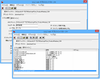
Task Editor software with Sync Preview - The Task Editor is an easy to use tool for creating, editing, and running the sync tasks. It also has a sync preview feature, which displays sync results without actually transferring any files. This preview feature is a tool for testing and fine-tuning the sync task filters and options.
Multithreaded transfers - The BatchSync supports up to 25 simultaneous browsing and file transfer threads. This will greatly increase the performance of the file synchronization.
Compression Support - BatchSync accelerates the file transfers with on-the-fly file compression using the MODE Z command.
Include/Exclude filtering - You can specify multiple include and exclude filters for each task. Filters can use file/folder names, file size, date and attributes, and can utilize regular expressions for powerful control over filters. File name filters can be matched within a specific sub folder, set of sub folders or all folders.
Handling of Conflicts - BatchSync can detect conflicts (=file has changed on both source and target) and you can specify the action to take in conflicts, like skip file, skip and report, always upload etc.
Recursive folders and symbolic links - You have an option to ignore subfolders (no recursion to subfolders) and also ignore symbolic links. Specific folders & symbolic links can also be excluded with filters.
Automatic reconnects, retries, and resumes - The number of reconnects, retries and timeouts can be specified individually for each task. You can also use unlimited retries. Software will automatically continue (=resume) the transfer in exact point of failure, rather than starting from the beginning of the file each time. When reaching the max limit for retries, you can be notified via log files and email notifications
Email notifications - Each task can be set up to send emails on successful and/or failed syncs. You can specify multiple recipients for the notifications. Emails are sent using standard SMTP server protocol.
Extensive logging with auto-rotate schemes - You can generate up to four different log files for each run of the sync task. The log files are: Transfer history log (shared summary log file for all sync tasks), FTP command log, list of files transferred and error log.
There are various auto-rotation schemes available for log files, so you can e.g. set up log file to be rotated when its size reaches 10MB. Or set new log file to be created every day or every week etc.