ONLYOFFICE Docs Enterprise Edition with Moodle Connector v7.1.x
Released: Jun 7, 2022
v7.1.x での更新項目
v7.1.1 (3.0.0)
Updated Aug 23, 2022
Features
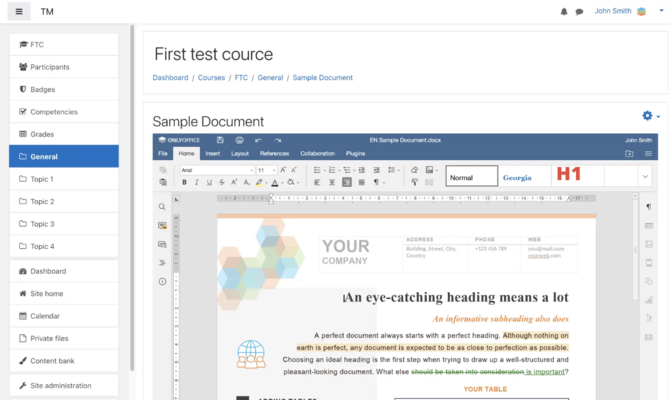
- Added a new integration app, which brings a redesigned interface to work with Moodle 4.0. You can:
- Manage document activities in courses - Create an ONLYOFFICE activity in a course to add documents and enable viewing and editing in the Moodle interface. In addition to the new activity’s name and description, you can adjust many other important settings:
- Choose the file type to attach to the activity.
- Define permissions for downloading and printing.
- Add or hide the Protection tab in the editors.
- Manage module availability.
- Set up a module ID.
- Restrict access to the activity.
- Set the parameters for completion tracking.
- Add tags.
- Manage course competencies for this activity.
- Once the activity is set, you can decide which types of users have access to it, as well as other types of activity permissions. For example, you can allow editing permission for teachers and allow only document viewing for students.
- View and edit attached files - In the ONLYOFFICE document activity, you have access to capabilities of ONLYOFFICE Docs:
- Edit text documents, spreadsheets, presentations attached to the courses.
- Create fillable forms in documents and share them for filling with students and teachers.
- Co-edit the files using two co-editing modes (Fast and Strict), Track Changes mode, comments, and built-in chat.
- View and edit DOCX, XLSX, PPTX, TXT, and CSV; view PDF; edit ODT, ODS, ODP, DOC, XLS, PPT, PPS, EPUB, RTF, HTML, and HTM through conversion to OOXML.
- Use external plugins to extend functionality: YouTube, Draw.io, DeepL, Apertium, Mendeley, Zotero, HTML converter, Language Tool, Thesaurus, and more.
- It is possible to use compact editor on the course page to have easy access to the activity information and blocks such as comments, recent activity, tags, etc., or enter a full screen mode to edit the files in the extended interface.
- Protect your documents - Besides permissions and restrictions offered in activity settings, your file and data security are backed by protection tools available in ONLYOFFICE Docs:
- Password protection for documents, spreadsheets, and separate sheets.
- Restriction of access to select cells, formulas, and filtering in spreadsheets.
- Watermarks against unwanted distribution and copying of the information in files.
- JWT to protect file access from unauthorized users.
- Customize the interface of ONLYOFFICE Docs in Moodle - As an admin, you can customize the interface elements of ONLYOFFICE Docs in Moodle:
- Display or hide Chat, Help, and Feedback and Support menu button.
- Choose default or compact toolbar header.
- Choose colored or monochrome toolbar header.
- To find the customization options, go to Site administration >> Plugins >> Activity modules >> ONLYOFFICE.
v7.1.1 (2.2.0)
Updated Aug 12, 2022
Features
- Create and fill out forms - From now on, working with digital forms is available for the ONLYOFFICE-Moodle integration. You can create form templates such as assignments, tests, planners, etc., and collaborate on them with your colleagues, or just use free ready templates from ONLYOFFICE's OFORM library. You can also fill out the forms and save them as PDF if needed.
- Create activities with attached blank files - When adding an ONLYOFFICE activity to your course, you can now create a new blank file - document, spreadsheet, presentation, or form template (along with the existing option to upload files).
- Hide protection settings - In case you don’t want other users/students to have access to protection settings in the editors, check the Hide Protection tab in the Document permissions section. This way, they won’t be able to set a password for files, separate workbooks and sheets. Please note: users with the ‘course: manage activities’ permission always have access to the protection settings.
- Customize editor interface - You can now apply customization settings to adjust the editor interface making the header more compact, displaying monochrome toolbar, and change the presence or absence of the additional buttons such as Chat menu, Feedback & Support or Help menu button.
- Work with docs in fullscreen mode - To make your editing experience more comfortable, the ability to open the editors in fullscreen mode has been added. Just click the Open full screen button to get more space for your documents and stay concentrated on the editing process only.
- Mention users in comments - You can now address a comment to a specific user to draw their attention, just start your comment with the + or @ symbol and the list of users to mention will appear right away.
- Added new interface languages - New interface translations have been added, including:
- German.
- Spanish.
- French.
- Italian.
- Japanese.
- Chinese.
- Russian.
- When users change the preferred language in their Moodle profiles, the editors now automatically open in that language.
- Added the ability to 'Save as' in the editor - Save your documents in the desired format to course sections within your Moodle. Go to the File tab in the editors, click the Save Copy as option, select the needed file format and then select the course section where you want the file to be saved.
- Other updates:
- Added the ability to display browser tab favicons for each editor depending on the file type.
- Version compatibility:
- Version 2.2.0 of the ONLYOFFICE plugin is compatible with Moodle v3.9, v3.10 and v3.11.
Fixes
- Fixed backups and restoring.
v7.1.1
Updated Jun 7, 2022
Fixes
- Fixes in all editors
- Fixed rendering of the fonts list.
- Fixed rendering of some Chinese fonts.
- Updated help entries.
- Document editor
- Fixed lost text box in the Header.
- Fixed incorrect table width for a DOC file.
- Fixed conversion of some DOCX files.
- Fixed color of SmartArt figures for DOCX -> ODT conversion.
- Fixed page count in the specific DOC file.
- Fixed insertion of a page with merged cells and drag'n'drop.
- Fixed zoom while touch-pad scrolling.
- Hidden ‘Create new’ option for offline PDF/DJVU/XPS files.
- Spreadsheet editor
- Fixed display of all sheets while saving as PDF.
- Fixed zoom change with touch-pad on Apple macOS.
- Presentation editor
- Fixed re-saving of some PPTX files.
- Fixed text alignment for some ODP files.
- Fixed saving SmartArt in groups.
- Fixed crash on drawing animation labels by shape track.
- PDF viewer
- Fixed lost text in PDF -> ODT conversion.
- Fixed lost text in PDF -> image conversion.
- Fixed calling for the Translate plugin.
- Mobile web editors
- Fixed merged button on tablets.
- Fixed interface move after closing Find & Replace.
- Fixed tooltip for function description.
- Document Builder
- Fixed broken presentation after using ApiSlide.ApplyTheme.