Released: Nov 18, 2011
2011 Volume 2 での更新項目
What’s new NetAdvantage for jQuery 2011 Volume 2?
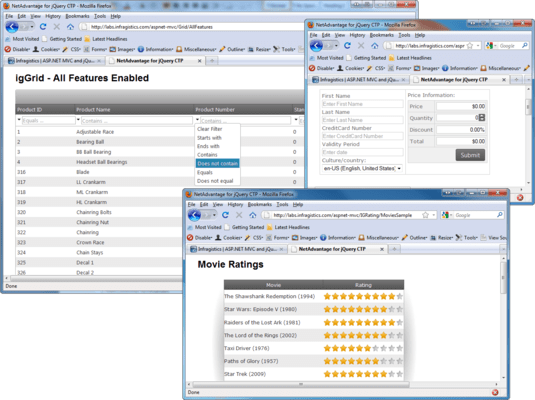
The continued focus on grid performance improves the grid’s data display and new features like Outlook GroupBy and hierarchy have been added. This release also includes an intuitive auto-suggest ComboBox, a Tree with checkboxes to simplify the display of hierarchical data and an HTML Editor.
Data Grid
Use the jQuery grid to get more interactivity out of your static HTML tables and data. The latest iteration offers more line of business features.
- Group By - Users can customize and combine data for their Outlook applications simply by dragging and dropping the column header to group (and ungroup) common values and conditions.
- Editing - Enter data within the cell, using templates with custom editors that match the column’s data type. This allows for adding new rows and deleting rows within the grid. In addition, validations can be done real-time within the grid cell.
- Column Hiding - Don’t want particular columns to be visible on the grid, but still would like them to be accessible from the data source? Users can now simply hide them.
- Column Resizing - Users can easily customize widths to alter their grid views to their preference.
- Row Selectors - Use the row selectors to quickly select a row to perform an operation.
- Column Summaries - Display column summaries showing aggregates of values in the cell. It comes with the standard sum, average, max, min and count aggregate formulas built-in.
- Tooltips - Easily enable tooltips over cells that contain lengthy data.
- Feature Chooser - Users can now choose features they want the grid to support by using the new feature chooser.
Hierarchical Grid
Show multiple parent-child relationships in an expandable, hierarchical data grid. Users can drill down, as well as add, edit, delete, select, sort, group and filter rows using their mouse or keyboard.
- Group By - Combine and customize data for your Outlook applications by simply grouping (and ungrouping) common values or conditions by simply dragging and dropping the column header to the group-by area.
- Editing - Enter data within a cell, using templates with custom editors that match the column’s data type. You can also easily add new rows or delete rows within the grid. In addition, validations can be done real-time within the grid cell.
- Column Hiding - Don’t want particular columns to be visible on the grid, but still would like them to be accessible from the data source? Users can now simply hide them.
- Column Resizing - Users can now easily customize column widths, to alter the views to their preference.
- Column Summaries - Display column summaries showing aggregates on the value of cells in that column. It comes with the standard sum, average, max, min and count aggregates built-in.
- Tootips - Easily enable tooltips over calls that contain lengthy data.
- Row Selectors - Use the row selectors to quickly select a row to perform an operation.
- Feature Chooser - Users can now choose feature they want the grid to support by using the new feature chooser.
- Selection - Full selection capability is built in the hierarchical grid, allowing users to select a row, cell or column to trigger an action in the application.
- Load on Demand - Smart-load on-demand and lazy creation of elements are part of the control. Data can be fetched on the fly when the user expands a row that contains child records. Similarly, the client elements are created only when there is a need for it, optimally utilizing both bandwidth and client memory.
- Animations - When the user expands or contracts a row, animations are used to visually enhance the user experience when working with the hierarchical grid control.
- Multiple Band Hierarchy - No need to stop at one parent-child data relationship. The Hierarchical Grid lets you have as many as you want, related by a data key from one level to the next.
- jQuery Theme Roller Support - Whether you use a style from the Theme Roller library, or find something in the open source community and it adheres to jQuery standards, you can apply it to the Hierarchical Grid control.
ComboBox
Using this fully featured Combo Box control with intuitive Auto-Suggest, Auto-Complete and Auto-Filtering built-in, your users will be able to find the choices they are looking for much more quickly. Single/Multi-Select capabilities are also available with the Combo Box.
- Auto-Suggest - As the user types, the Combo's auto-suggest picks up the entered text and displays a list of suggested values.
- Auto-Complete - The Combo can auto-complete the text for the user in the input area, without the user having to type the whole word.
- Single/Multi-Select - The Combo Box can be used as a single selection or a multi-select drop down list, using checkboxes via both keyboard and mouse.
- Match Text Highlighting - As the user enters value in the edit box, the Combo Box also highlights the text within the suggested list items.
- Items Templates - Customize every item in the drop down list by using templates.
- Single/Multi-Columns - Use the Combo Box as a single list item display, or make it a multi-column combo. Both states are easy to configure and use.
Tree
Simplify the look of your hierarchical data into a web-based tree, depicting familiar parent-child relationships between nodes of information. Sporting a responsive user experience and high performance design, your users will love its comprehensive function features like checkbox selection, node templates and more.
- Load on Demand - Smart load on demand and lazy creation of elements is built in to the tree control. Data can be fetched on the fly when the user expands a node. Similarly, the client elements are created only when there is a need for it, optimally utilizing both bandwidth and client memory.
- Node Templates - Tree nodes can be fully customized via templates to display much more, including images.
- Checkboxes - Enable checkboxes to let the user check and uncheck nodes.
- Keyboard Navigation - Use only the keyboard to navigate within the tree control. Expand, collapse, select, check or uncheck all node actions can be performed using a key press.
- Excel Library
- Import and export Microsoft Excel workbooks in high-fidelity XLS/XLSX/ExcelML file formats. With absolutely no Excel dependency, your jQuery application can run completely independent of Excel, and Excel does not have to be installed alongside your application.
- Shapes Support - Flip simple shape types - such as rectangles, right triangles and line shapes - horizontally or vertically, or change their outline or fill colors.
- Data Validations - Constraints can now be placed on the values entered by users in Microsoft Excel. All data validations, including drop down lists and custom formula validations, are supported.
- Print Titles - Groups of rows and columns can now be set to be repeated on each printed page, when a user prints the worksheet in Microsoft Excel.
- Print Area - Rectangular ranges of cells can now be set to be printed on their own pages, when a user prints the worksheet in Microsoft Excel.
- Page Breaks - Horizontal and vertical page breaks can now be added to the worksheets.
HTML5 Charts
New chart functionality offers support for a full range of business, scientific and financial charting scenarios, as well as animations and trend line capabilities.
- Chart Types - The jQuery Chart control offers a full set of dynamic HTML5 business charts right out of the box, including bar, line, polar, range, step, spline, OHLC and candlestick charts, as well as technical indicators.
- Panning & Zooming - Full support for panning & zooming chart data using the mouse and keyboard.
- Multiple Series - Compare data from two difference sources. The control makes it easy to bind the chart to more than one series.
- Live Updating - Update the data as it happens with the live updating feature. The chart will automatically update based on the new data feeds as they are added to the data source.
- Legend - A legend can be applied to help with the understanding of data being presented from different series.
- Trend Lines - Built into the charts, trend lines show visual projections of data based on the trend formula selected, making it easy for the reader to get a snapshot of the trending data.
- Animations - Charts can animate when using the motion framework to help the data tell the story over time. Animations can be used to smoothly transition between binding charts to different data sources.
- Motion Framework - The motion framework helps the data tell a story over time, by reading through the data and updating the data points as they happen.
- High Performance Rendering - The charts can display millions of data points, and update with high frequency to hand real-time data feeds.
HTML Editor
Give your end users a comprehensive HTML editing experience with their web browser by adding the jQuery WYSIWYG editing tool to your applications. The WYSIWYG editor offers rich text formatting, the ability to insert images, links, lists and tables; clipboard support and source and design views.
- Rich Text Formatting - Standard rich text formatting capabilities are available in the jQuery HTML Editor. Formatting options available include picking font family and font size, and altering text to be bold, underlined or italicize, in addition to changing text alignment settings.
- Insert Images, Links, Lists and Tables - Add images, links, lists and tables directly within the content area of the editor.
- Clipboard Support - Support for cut, copy and paste is built into the HTML Editor control, making it easier for users to work interchangeably with other rich formatting editing tools.
- Source & Design Views - The WYSIWIG design surface makes it easy to do rich content editing for any type of user. Those who understand HTML constructs can switch to source view and make content edits there as well.